
Drive, Dropbox and DocuSign: how AI files contracts and chases signatures
Your crew needs the right drawing on site, and your office needs that change order signed. An AI Employee can help move those files along while your team gets on with the job.
6 minute read
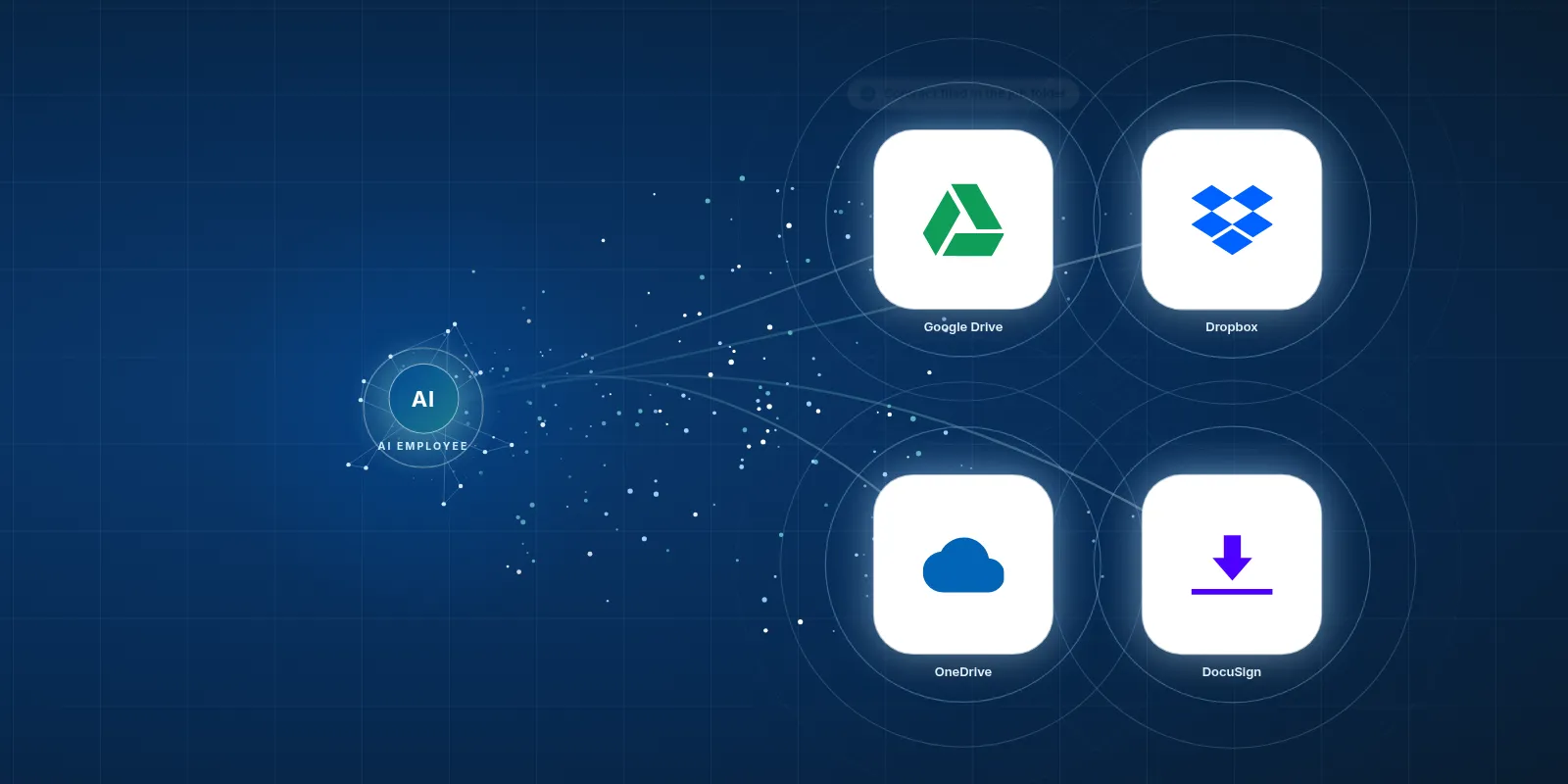
AI in Google Drive can help with construction files through an AI Employee set up to put documents in the right job folder and find them when you ask in chat. It can also work with Dropbox, OneDrive and DocuSign to send approved contracts for signature and follow up, once the connection and your rules are in place.
- Shared folders work best when everyone follows the same naming rule.
- An AI Employee can take on filing and signature follow ups.
- Your team still decides which plans and contract terms are approved.
- VeebarTech has not yet built this connection for clients.
What do these tools actually do?
Google Drive, Dropbox and OneDrive store your files online. Your team can open plans, photos and contracts from a phone on site. Instead of calling the office for a drawing, a foreman can open the shared job folder and look for it there.
DocuSign handles signatures. You send a contract or change order online, and the client or sub signs it without printing a paper copy. That can save the office from chasing a scan that comes back sideways or with a page missing.
These tools have useful jobs. But a shared folder still needs someone to put the right file in it. And a contract sent for signature still needs attention when the person who must sign has a question.
Who are these tools a good fit for?
Small builders and trade firms use shared folders because the idea is simple. The office puts a file where the crew can get it. You don't need to explain a whole new way of running a job just to share a roof plan.
The trouble starts when each person has their own filing habit. Your estimator saves a quote under the client's name, while the office uses the street address. Both choices make sense to the person doing the saving. Finding that quote later is another story.
We'd start with a clear folder naming rule. Pick the job name everyone will use, then agree on how to mark approved drawings. The rule needs to make sense to the person opening a file on a phone in the rain.
A shared folder only helps if your crew knows which file to trust.
How widely are these tools used?
Dropbox reported 18.22 million paying users and over 700 million registered users at December 31, 2024, in its fiscal 2024 annual report. Those are different measures. A registered account does not tell you that someone pays for the tool or uses it every day.
DocuSign reported nearly 1.7 million customers and more than a billion users worldwide at January 31, 2025, in its fiscal 2025 annual report. That shows broad use. It does not tell us how many of those customers are small construction firms.
The supplied facts don't give a user count for Google Drive. They also don't give a separate count for OneDrive. The Microsoft figure covers the wider Microsoft 365 package, so we wouldn't present it as the number of people using OneDrive.
What makes file sharing and signatures feel slow?
The file is often there somewhere. A sub emails a revised quote, someone downloads it to a phone, and the office keeps working from the old copy in Drive. You end up asking the same question again. Is this the latest approved version?
Syncing files can cause trouble too. The supplied sync conflict article describes how edits made at the same time can leave duplicate copies in these storage tools. Fieldwire also warns that large plan sets can take time to sync. A shared folder isn't a promise that every device is ready.
Cost can be another sore spot. Some Dropbox reviewers on G2 complain about subscription costs, while some DocuSign reviewers on Trustpilot report billing and renewal disputes. These are user reports, not every customer's experience. DocuSign also caps envelopes, so check your plan before setting up automatic sends.
- A vague file name makes a quick search take longer.
- A missing approval makes the latest drawing hard to confirm.
- A signature request can sit while the signer waits for an answer.

Your team keeps the tools it knows. The AI Employee takes the busywork around them.
How can an AI Employee help our office?
An AI Employee can work with these tools once we set up the connection for your company. It can file incoming documents in the right job folder with clear names, using rules you approve. That gives the office less copying and renaming to do after a busy day.
You can also ask for a document in chat, such as the approved plumbing quote for a named job. The AI Employee can return a link from the folders it has access to. If the file's status is unclear, it should flag that for someone to check.
For signatures, it can send an approved contract through DocuSign and follow up until it is signed, within your rules. If a client disputes the price or scope, your team takes over. The AI Employee handles the chasing so the same people can focus on the work they were hired for.
| Real task | Doing it by hand in the tool | The tool plus an AI Employee |
|---|---|---|
| Save a sub's quote | Download, rename and move it into the job folder. | Can file it using your job and naming rules. |
| Find an approved drawing | Search folders and check its approval status. | Can return the marked approved file or flag unclear status. |
| Send a change order | Prepare and send the signature request. | Can send the document after your team's approval. |
| Follow up on a signature | Check the status and send a reminder. | Can follow your reminder rules and flag replies. |
Your team approves the work. The AI Employee can take care of the filing and chasing.
How would we set this up for our jobs?
Start with a task that already eats office time, such as filing quotes that arrive by email. We would map where those quotes come from and where they belong. Then we'd test the rules with sample files before letting the process handle live job records.
 Google Drive
All of these tools have public APIs, which let software work with them. Depending on the task, a setup could use an API, an export or the emails a tool sends. Access and plan limits still need checking for your company.
- Pick a task with a clear start and finish, such as saving an incoming quote.
- Agree on job folder names and how approved files will be marked.
- Choose which folders and email accounts the AI Employee can access.
- Set the approval rule for sending contracts and the stop rule for reminders.
- Test missing job names and duplicate files, then review the results with your office.
What should we tackle first?
Look at what your office keeps getting pulled away to do. If people call for files all day, start with finding documents. If signed change orders are the hold up, start there instead. A clear task makes it easier to judge if the setup helps.
You don't need to move every file to a new home before you begin. You do need an agreed place for the records used in the first task. Try a free construction tool while you work out which bit of busywork to tackle.
Start with filing
Choose this when Quotes and photos keep landing in the wrong place.
Set up a filing rule for incoming records, with unclear job names sent to the office for review.
Start with finding
Choose this when The crew keeps calling the office for documents.
Make approved files easy to ask for in chat, with links back to the shared folder.
Start with signatures
Choose this when Approved contracts sit waiting for a signature.
Set up sends and reminders, with questions about terms passed back to the person responsible.
What can VeebarTech build, and what needs our team?
We haven't built this connection for clients yet, and we aren't an official partner of these vendors. An AI Employee can work with these tools, but the setup needs to be scoped and tested for your company. This post describes what we can help plan.
AI will not walk your site for you. It also shouldn't decide that a drawing is approved just because the file arrived last. Your team must set the approval rules and handle questions about the work. Good filing supports that judgement.
Bring an example of a file that went missing or a contract that needed repeated chasing. We can use that to discuss a useful starting point. See how paperwork gets handled, or browse our free tools for construction companies.
Questions owners ask
Does AI in Google Drive mean we need to replace Google Drive?
No. In this post, AI in Google Drive means an AI Employee connected to your existing file process. Your team can keep using Drive. The setup can help put files where they belong and find them in chat, based on the access and rules your company approves.
Can an AI Employee work across Dropbox and OneDrive too?
Yes, it can be set up to work with those tools through their APIs or other suitable inputs, such as exports. We would need to check access and decide where each record belongs. Having access to several folders does not, by itself, tell the AI Employee which copy is approved.
Can it send contracts without asking us each time?
That depends on the approval rules you choose and what the setup supports. A sensible starting point is to require approval before a contract goes out. Once approved, the AI Employee can handle the send and agreed reminders. Changes to the scope or price should come back to your team.
Will this stop the crew from opening an old drawing?
It can help, but it cannot promise that nobody will use an old copy. Your company needs a clear way to mark approved drawings and deal with older files. The AI Employee can follow those rules and flag doubts. It should not guess which drawing the crew should build from.
Has VeebarTech already built this connection for clients?
No. We have not built this connection for clients yet, and we are not an official vendor partner. We can discuss how an AI Employee could work with your tools and what needs testing. The first step is to pick a real task and check the access it would need.