
Microsoft Project: how AI keeps a construction schedule current
Microsoft Project can map out a job. An AI Employee can help turn site updates into schedule changes and make sure your subs know when to show up.
6 minute read
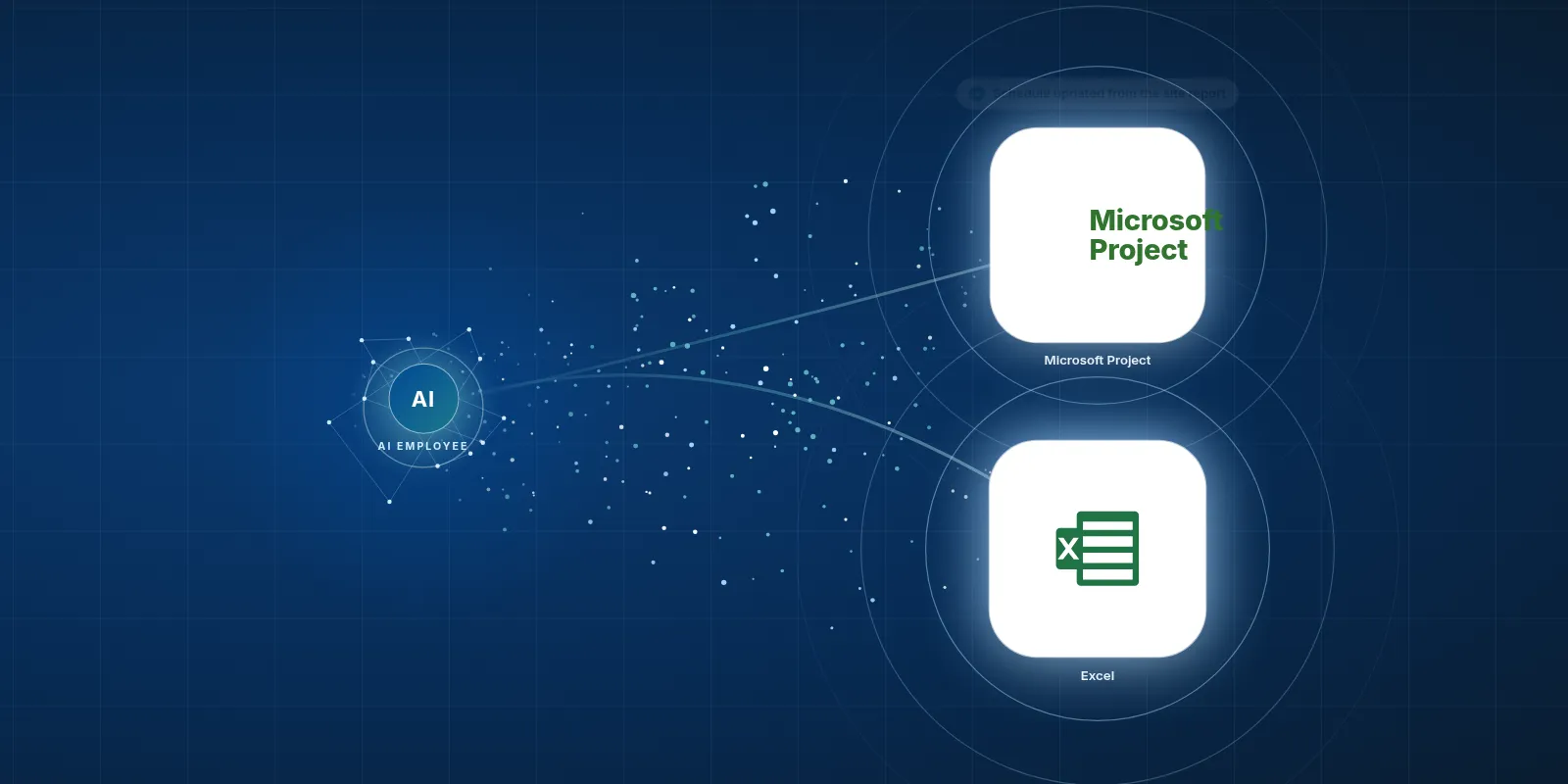
An AI Employee can work with Microsoft Project through a connection set up for your company to help update dates from site reports and ask subs to confirm their work. It can also flag delays that could push back the next trade, while your team keeps control of the schedule.
- Microsoft Project shows how tasks depend on each other.
- Its public user count is old, so it cannot tell us how popular it is today.
- An AI Employee can help with updates and sub confirmations through a custom setup.
- Your team still approves changes that affect the job.
What does Microsoft Project actually do?
Microsoft Project is a scheduling tool. You list the tasks on a job, how long each should take, and which tasks must finish before others can start. It turns that plan into a Gantt chart, which shows each task as a bar across a calendar.
It also shows the critical path. That's the chain of tasks that controls when the job can finish. If a task on that path slips, the finish date can slip too, unless you change the plan.
- Link drywall to the work that must be done before the walls can close.
- See which later tasks may move when an inspection is delayed.
- Check how a change affects the finish date before you agree to it.
Who is Microsoft Project a good fit for?
Think of a larger contractor with a person who looks after the schedule. That person works on Windows and knows how to link tasks. The owner or general contractor asks for a critical path schedule in .mpp format, which is the Project file they expect to receive.
In that setting, Project has a clear job. The schedule needs enough detail for someone else to review it and see how the work fits together. A shared calendar may not meet that need.
For a small trade shop, the choice is less clear. If you mainly need to tell a crew which house to visit next, Project may take more effort than the job calls for. Start with what your customers need and what your office can keep current.
A good schedule is one your team can keep current when the job changes.
How popular is Microsoft Project?
The Next Web reported on February 3, 2014 that Microsoft said more than 20 million people used Project. That's a large figure, but it's old. It's the latest public user count supplied for this post, so we can't use it to claim how many people use Project today.
The University of Toronto EASI notice gave September 30, 2026 as the retirement date for Project Online and said Project desktop and Planner were not affected. That date has passed. If your office used Project Online, check where your projects now live before planning a connection.
The Project Group's supplied pricing listing puts Planner Plan 1 at about $10, Planner and Project Plan 3 with the desktop app at about $30, and Plan 5 at about $55 per user per month in USD. Treat these as listed prices to check before buying.
What do people find slow or annoying?
Project can hold a detailed plan, but someone still has to feed it fresh facts. The site says the slab isn't ready. Your office then has to work out what moves and tell the affected subs.
That gap is where the work piles up. A schedule can be out of date the day it's made, and a revised file doesn't mean the plumber has seen their new start date. The tool can show the plan while your office still does the chasing.
- G2 reviewers describe a steep learning curve and screens that can be hard to learn.
- Small business reviewers on G2 say the price can be hard to justify.
- Microsoft's support page says the desktop app runs on Windows. A Mac user needs a different setup, such as a virtual machine.
- Builders in a Fine Homebuilding forum discussion describe Project as more tool than a simple job schedule needs.
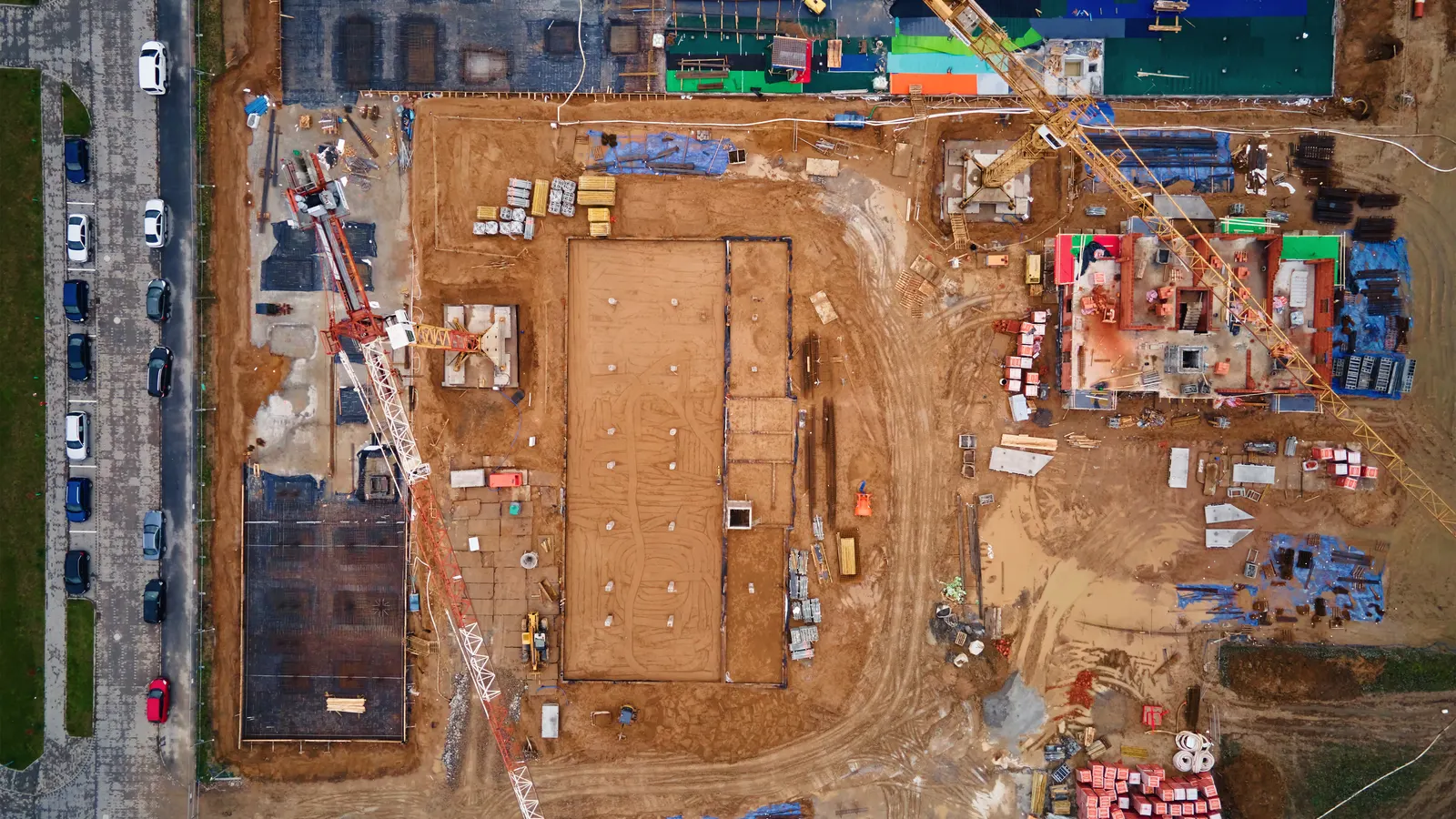
Your team keeps the tools it knows. The AI Employee takes the busywork around them.
How can an AI Employee help around Project?
The useful part is closing the gap between the site and the schedule. An AI Employee can read an agreed source of site updates and match a report to the right task. With rules set by your team, it can prepare a date change or apply an approved update.
It can then text each affected sub their dates and ask for a confirm. If a sub doesn't reply, it can bring that back to your office. It can also flag linked work that may be delayed before the next trade heads to site.
We haven't built this connection for clients yet, and we're not an official Microsoft partner. This is a setup VeebarTech can scope for your company. What it can do depends on your Project version and the access available.
| Task | Doing it by hand in the tool | The tool plus an AI Employee |
|---|---|---|
| Record a site delay | Read the site message and find the task to update. | Can match the report to a task and prepare an update for review. |
| Tell a sub their new dates | Check the revised schedule and send a text. | Can text approved dates and ask the sub to confirm. |
| Chase a missing reply | Look through messages and follow up. | Can track replies and flag a missing confirm. |
| Check the next trade | Review linked tasks after a change. | Can flag affected tasks for your scheduler to check. |
The date isn't settled just because it changed in the file.
How would we set up the connection?
We would start with your actual workflow. That means finding out where the site sends updates and who has the final say on dates. A clear report from a foreperson is useful input, while a vague message needs a person to ask what it means.
 Microsoft Project
Microsoft's developer documentation describes schedule APIs for web project data held in Dataverse, with licensed Project users required to call them. The desktop app can be scripted with VBA. We would check which route fits, including exports or emails where those make more sense.
- Check your Project version and access. Confirm where the schedule lives and how approved changes can reach it.
- Choose the site updates to use. Agree on what a report needs to say so it can be matched to the right task.
- Set the approval rules. Decide which changes need the scheduler's review before any dates move or texts go out.
- Set up sub confirmations. Agree on the message and what happens when a sub says no or doesn't reply.
- Test a delayed task. Check the proposed changes and confirm that each affected sub would receive the right dates.
Does your company need this much scheduling help?
Start with the work that keeps landing on your desk. If you spend time chasing confirmations after each schedule change, there's a clear task to look at. If the schedule rarely changes, the setup may be hard to justify.
You can explore a smaller office task first. Try a free construction tool to see where AI might fit your daily work. You don't have to start by connecting your main job schedule.
Keep it simple
Choose this when Your jobs need a basic crew calendar.
Use a plan your office can keep current. Choose Project when the job or customer calls for its level of detail.
Help your scheduler
Choose this when You use Project and spend time chasing updates.
Look at an AI Employee for site reports and sub confirmations. Your scheduler keeps control of task links and key dates.
Check access first
Choose this when Your team used Project Online or isn't sure which version it has.
Confirm where the current schedule lives. Then work out what a connection can read and change before you scope the setup.
What should stay with your team?
AI will not walk your site for you. It can't tell from a calendar that the floor is too wet for the next trade. Your site lead still reports what's true, and your scheduler decides how the plan should change.
The aim is to give that same team less busywork. Your office should be able to deal with a blocked job instead of copying dates into texts. If that's the work you want help with, see how the AI Employee works for builders and we'll look at what a connection would need.
Questions owners ask
Is AI in Microsoft Project a separate product?
In this post, AI in Microsoft Project means using an AI Employee around your Project schedule. We aren't describing a separate product with that name. The connection would be set up for your company, based on your Project version and the tasks you want help with.
Can an AI Employee change dates without asking us?
That depends on the access and rules agreed during setup. We would start by deciding which changes need a person to approve them. You might want every proposed date change held for review. The AI Employee can still help gather site reports and draft messages while your scheduler makes the call.
Can it text our subs and get a confirmation?
That is a workflow we can scope as part of a custom connection. It would need approved contact details and clear rules for sending dates. A reply should be tracked against the right task. Silence should stay marked as a missing reply, so your office knows the date hasn't been confirmed.
Will this work if we use Macs?
The Project desktop app runs on Windows, so we would first check how your team uses it now. A virtual machine is a possible route for a Mac user. The connection plan depends on where the schedule is stored and what access is available, so we wouldn't promise the same setup for every office.
Have you already built this connection for clients?
No. We haven't built this Microsoft Project connection for clients yet, and we're not an official Microsoft partner. We can review your workflow and scope a connection through the access your setup supports. Before you commit, we would define what it can do and how your team would check its work.